


Introduction
For years, Shopify has been known as the go-to platform for physical product stores — but that reputation only tells half the story. Today, thousands of entrepreneurs are learning how to sell digital products on Shopify to build scalable, low-overhead businesses that generate income while they sleep.
Unlike physical inventory, digital products don't require packaging, shipping, or warehouse space, making them one of the most accessible paths to financial freedom through side hustles.
🎥 Prefer watching instead of reading?
Watch the full step-by-step explainer video below.
Whether you're in the United States, Australia, or anywhere else in the world, the process is largely the same: pick a profitable niche, set up your store correctly, connect the right delivery app, and optimize for conversions. In this guide, we'll walk through four key stages — from choosing your product type to setting up automated downloads and marketing your store for consistent sales.
By the end, you'll have a clear, actionable roadmap for launching a digital storefront that works for you around the clock.
What Does It Mean to Sell Digital Products on Shopify?
Digital products are intangible goods delivered electronically rather than shipped in a box. On Shopify, this typically includes PDFs, printables, Canva templates, ebooks, online courses, stock photography, audio files, and software. Rather than managing stock levels or shipping carriers, sellers upload files once and deliver them automatically to every customer who purchases.
While Shopify was originally built with physical retail in mind, it fully supports digital selling through built-in settings and third-party apps that handle file delivery.
The key difference at checkout is simple: no shipping address is required, no delivery fees apply, and customers typically receive instant access via a download link or order confirmation email — a frictionless experience that keeps conversion rates high for categories like planners and other digital products.
Step 1: Choose Your Niche and Digital Product Type
Before touching your Shopify dashboard, the most important decision is what you'll sell. Some of the best-performing categories right now include printable planners and journals, Canva templates for social media and presentations, ebooks and mini-courses, stock photos and design assets, and audio products like meditation tracks or sound packs.
For a deeper look at what's trending, this mega guide to 100 digital products you can sell online in 2026 is a useful starting point for brainstorming.
Digital products are especially attractive because they follow a "create once, sell repeatedly" model — there's no per-unit manufacturing cost, and a single well-designed template or planner can generate income for years. This makes it one of the lowest-risk ways to build a scalable online business, particularly when paired with high-demand PLR niches that sell fast.
Once you've narrowed down a category, validate demand before building your full catalog. Tools like EverBee can show you which digital products are already selling well on marketplaces like Etsy, giving you real sales data rather than guesswork.
Pairing this with basic keyword research — searching terms like "printable planner" or "Canva template pack" — helps confirm there's genuine search volume behind your idea. If you'd rather skip the product-creation process entirely, browsing done-for-you digital products that actually sell is a fast way to launch with proven templates instead of starting from scratch.
Step 2: Create Your Shopify Account and Basic Store Setup
3.1 Sign Up and Choose a Plan
Getting started on Shopify begins with signing up for an account, which usually includes a free trial period followed by discounted introductory pricing. If you're still unsure what a digital product actually is or whether this business model suits you, this complete beginner's guide to digital products is worth reading before you commit to a plan.
When choosing a plan, digital sellers have an advantage: you don't need advanced shipping features, carrier integrations, or inventory management tools that physical retailers rely on. Any entry-level Shopify plan will comfortably support a digital storefront, so there's no need to overspend on features you won't use.
3.2 Basic Store Configuration
Once you're signed up, Shopify's onboarding flow will walk you through choosing a store name, setting your URL, and selecting payment gateways such as Shopify Payments, PayPal, or Stripe depending on your region. This is also the stage where many US and Australian sellers decide on their niche direction — for inspiration, browsing 15 digital products you can sell on Etsy without designing or exploring 40 digital products you can create using ChatGPT or AI tools can help shape your store's identity before you start listing products.
Before launching, set up your legal pages — refund policy, terms of service, and privacy policy — using Shopify's built-in templates as a starting point. These pages build trust with customers and are especially important for digital goods, since buyers often want clarity on refund eligibility for non-returnable files.
Step 3: Add Your Digital Product in Shopify
4.1 Creating the Product Listing
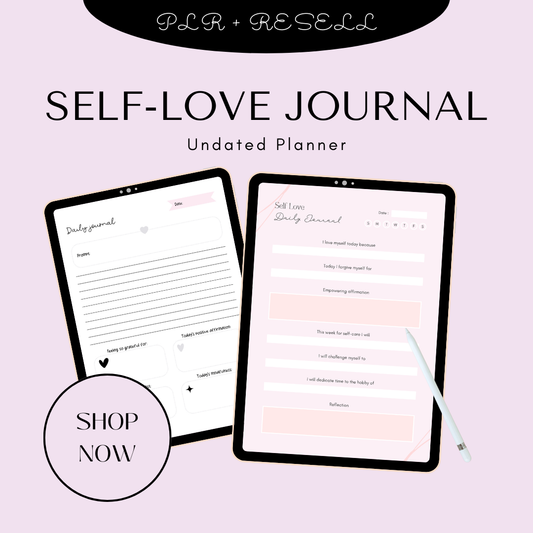
With your store configured, it's time to add your first product. From your Shopify admin, navigate to Products → Add product. Give your listing a clear, keyword-rich title — for example, something similar to a self-love journal or a niche-specific planner — and write a benefit-driven description that explains exactly what the buyer receives, who it's for, and how it helps them.
Upload high-quality media, including mockups that show your product in use, since digital buyers can't physically inspect what they're purchasing before checkout. Set your pricing in the Pricing section, and in the Inventory tab, you can disable stock tracking altogether since digital files never run out. If you'd rather use proven, ready-made listings instead of building from scratch, options like the PLR Pink Self-Love Journal or the 30 Days of Digital Marketing Carousels Bundle show how a polished digital listing should look and read.

4.2 Marking the Product as Digital (No Shipping)
This is the single most important technical step in the entire setup process. In the Shipping section of your product page, uncheck "This is a physical product." Skipping this step will cause Shopify to calculate shipping rates and request a delivery address at checkout — a jarring, unprofessional experience for someone buying a downloadable file.
Getting this right ensures your checkout is accurate, frictionless, and consistent with customer expectations. For a broader look at how this fits into the full sales process, this ultimate guide to selling digital products online breaks down the checkout experience in more detail, and if you're building your own products, this step-by-step process for creating digital products in 2026 is a helpful companion resource — particularly if your product falls under PLR digital products or the broader category of digital products to sell.
Step 4: Install a Digital Downloads App
5.1 Shopify's Free Digital Downloads App
Shopify doesn't automatically deliver files to customers — you'll need an app to handle that. The simplest option is Shopify's own free Digital Downloads app, available in the Shopify App Store. After installing it, open the app dashboard, select the product you created, and attach your file (PDF, ZIP, audio, etc.). Once saved, the app automatically generates a secure download link that's delivered via the order status page and confirmation email — no manual work required on your end.
This method works well for straightforward products like ebooks, templates, or bundles such as 52 MRR Aesthetic Social Media Posts or a 30 Days to a Better You ebook, where a single file (or small set of files) needs to reach the customer instantly.
5.2 Third-Party App Options
For more advanced needs — license keys, large file sizes, multi-file bundles, or gated access — third-party apps like Downloadable Digital Assets (DDA) or EZ Digital Downloads offer additional flexibility. This is particularly relevant for larger products such as video bundles, including something like a 700 Melanin Lifestyle Stock Video Reels Bundle, which may exceed the file-size limits of Shopify's native app.
Before committing to a third-party app, check its documentation for delivery timing, customizable email templates, and download-limit settings — details that affect the customer experience just as much as the product itself. It's also worth reviewing how you'll price and package these products; resources like how to price digital products for maximum profit and a comparison of the best payment processors for digital products can help you finalize your checkout setup, while sensitive-topic products like a coping with grief ebook and workbook show how digital delivery apps handle more personal, downloadable content with the same reliability as any other file type.
Step 5: Customize Your Theme and Branding
Your store's design plays a major role in conversions, so choose a clean, conversion-focused Shopify theme and customize the colors, logo, and fonts to reflect your brand. For niches like planners or templates, softer, editorial-style themes tend to outperform generic e-commerce layouts, as noted in this comparison of printable vs digital planners and which sells better online.
Your homepage hero section should immediately communicate what you sell and include a clear call-to-action, such as "Shop Digital Downloads." Organize your catalog into intuitive Collections — for example, "Printable Planners" or "Canva Templates" — to help shoppers browse by category rather than scrolling endlessly. If you're short on inspiration, curated collections like The Planner Collection, the Money Mindset Collection, or New Year New Me Collection demonstrate how to group related digital products effectively, and browsing 25 digital planners you can sell on Etsy (beginner friendly) can spark additional Collection ideas.
Finally, every product page should clearly state that the item is a digital download — including file format, delivery method, and instant-access messaging — so there's no confusion at checkout, particularly for niche products like the Self-Care SOS Kit.
Step 6: Configure Notifications and Test Your Store
Before going live, customize the automated emails your downloads app sends so they match your brand voice and visual identity. According to Shopify's own guidance on selling digital products or services, clearly communicating delivery expectations in these emails reduces customer confusion and support requests.
It's also worth editing your standard order notification templates to explicitly state that no physical item will be shipped — a small detail that prevents unnecessary "where's my order?" emails. Shopify's official documentation on digital and service products covers the technical settings involved in this step in more depth.
Once everything is configured, place a test order yourself. Confirm that checkout completes without prompting for a shipping address, that no shipping fee is charged, and that the download link arrives and works correctly — whether it's a straightforward file like a coping with grief ebook and workbook or a larger asset such as a 700 Melanin Lifestyle Stock Video Reels Bundle. Testing catches issues before real customers ever see them.
Step 7: Optimize for Traffic and Conversions
8.1 SEO Basics
Use your target keywords naturally in product titles, descriptions, and meta tags — for instance, working phrases like "printable planner" or "AI prompt pack" into your copy where relevant. Write descriptive, benefit-driven product descriptions that answer common buyer questions upfront. For a deeper technical breakdown of Shopify's approach to digital listings, Shopify's blog on digital products and this independent guide to selling digital products on Shopify are both useful references, alongside this practical Wise guide on how to sell digital products on Shopify.
8.2 Content Marketing & Social
Use blog posts, YouTube, and social media to showcase your products in action, then link back to your Shopify store. Offering a free lead magnet — such as a mini printable or sample template — is one of the most effective ways to build an email list you can market to later, especially within niches covered in the AI Prompt Packs collection or the Words That Sell collection.
8.3 Pricing and Offers
Bundling related products increases average order value and gives customers more perceived value for their money. Consider limited-time launch pricing to encourage first purchases. If you're reselling rather than creating from scratch, this guide to the best PLR products to resell in 2026 and this breakdown of done-for-you digital products can help you build a profitable, low-effort catalog quickly.
8.4 Trust and Clarity
Add an FAQ section addressing file formats, usage rights (personal vs. commercial), and how customers access their downloads. Displaying reviews and testimonials builds social proof and reduces pre-purchase hesitation. For sellers targeting less saturated markets, this guide to low-competition digital products for 2026 in USA and Australia markets is worth reviewing, and if you're using tools like Midjourney to create original assets, the Midjourney Mastery Guide Collection shows how to package AI-generated visual products professionally. For sellers focused on planners specifically, the Plan & Prosper collection and this list of the best digital planners for iPad and GoodNotes users offer additional positioning ideas worth studying.
Conclusion
Selling digital products on Shopify comes down to seven manageable steps: choosing your niche, setting up your store, listing your product correctly, connecting a downloads app, branding your storefront, testing your delivery flow, and optimizing for traffic and conversions. Rather than trying to launch a full catalog on day one, start with a single well-researched product, validate it, and iterate from there.
If you're still deciding what to sell first, browsing The Ultimate Branding Course review and breakdown or exploring ResellReady's shop is a practical next step toward launching your own profitable digital storefront.
FAQ
Do I need a separate app to sell digital products on Shopify?
Yes. Shopify doesn't automatically deliver digital files to customers after purchase, so you'll need an app like Shopify's free Digital Downloads app, or a third-party option, to attach files to your products and send automated download links at checkout.
Does Shopify charge shipping on digital products?
No, as long as your product is set up correctly. When adding a product, you must uncheck "This is a physical product" in the Shipping section. This tells Shopify not to calculate shipping rates or request a delivery address at checkout.
Can I sell digital products on Shopify for free?
You can't run a Shopify store entirely for free long-term, but you can start with a free trial and use Shopify's built-in Digital Downloads app at no extra cost, which keeps your setup expenses low while you test your first product.
What file types can I sell on Shopify?
Shopify supports most common digital file types, including PDFs, ZIP files, images, audio files, and video. For larger files or more advanced needs like license keys and bundles, a third-party downloads app may offer more flexibility than the native option.
How do I make sure customers actually receive their digital download?
After setup, place a test order yourself to confirm the checkout process works correctly, no shipping fee is charged, and the download link arrives promptly via email or the order confirmation page. Testing before launch helps catch delivery issues before real customers encounter them.
🎬 Want a visual walkthrough?
If you’d rather watch than read, here’s the full explainer video covering everything in this guide: