

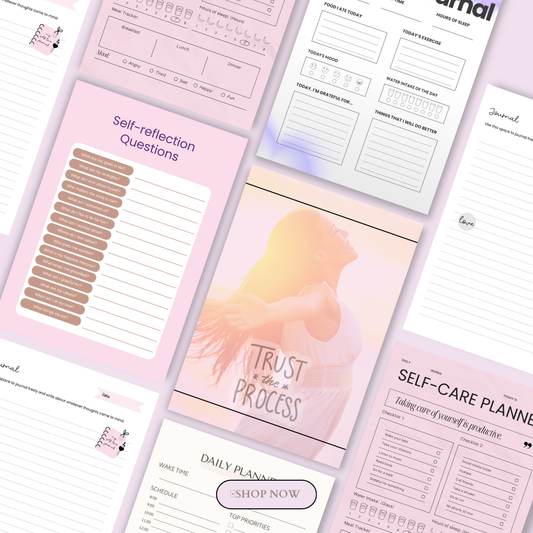

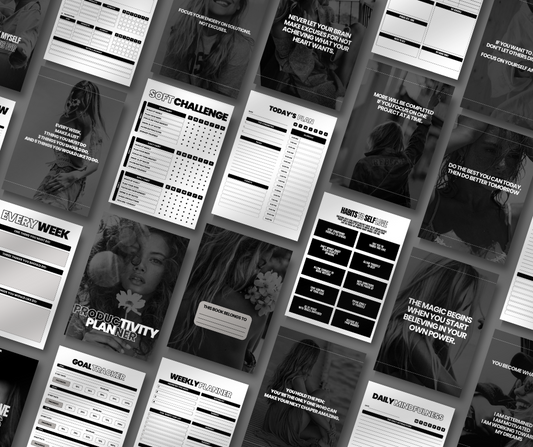


Introduction
If you create ebooks, printables, templates, courses, or any other file-based product, WooCommerce gives you a way to sell it directly from your own website — no marketplace fees, no algorithm dependency, and no third-party platform controlling your customer list. This guide is written for creators, coaches, and designers in the US, UK, and Australia who want a store that accepts payment and delivers files automatically, without needing a developer to set it up.
🎥 Prefer watching instead of reading?
Watch the full step-by-step explainer video below.
By the end of this tutorial, your WooCommerce store will be fully configured to sell downloadable products: customers will be able to pay, receive their files instantly, and access them again later from their account. If you're still deciding what to sell, this overview of digital products is a useful starting point before diving into the technical setup below.
What You Can Sell With WooCommerce (Digital-Only)
WooCommerce can sell almost anything that can be delivered as a file or as access to a page — which makes it one of the most flexible platforms available to digital creators. Common categories include:
-
Ebooks and workbooks (PDF, EPUB) — including transformation-style guides like this mindset and self-worth ebook
-
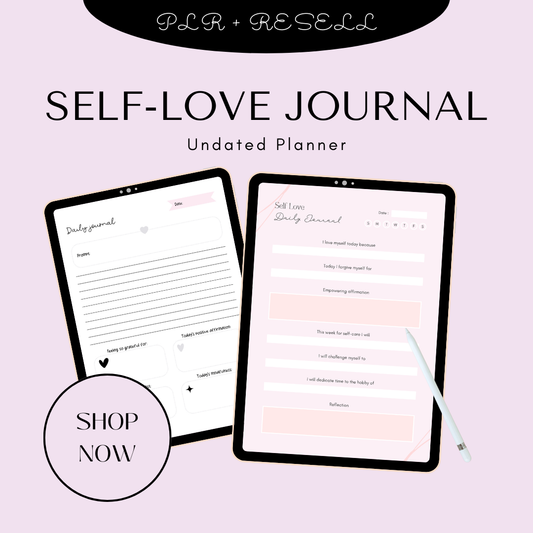
Printable planners and worksheets
-
Notion and Canva templates, such as a social media carousel bundle or a set of ready-to-post social media graphics
-
Audio files (MP3, WAV)
-
LUTs and presets for photo and video editors
-
Stock photos and fonts
-
Software, plugins, and licenses
-
Guides and blueprints, like this faceless wealth-building guide
-
Membership or course access, delivered through a protected page rather than a downloadable file
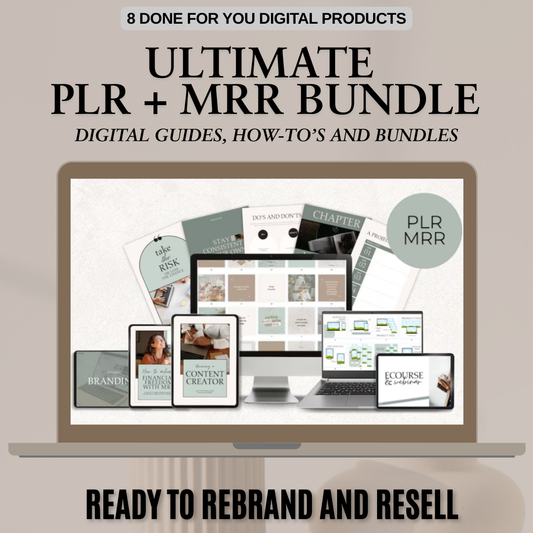
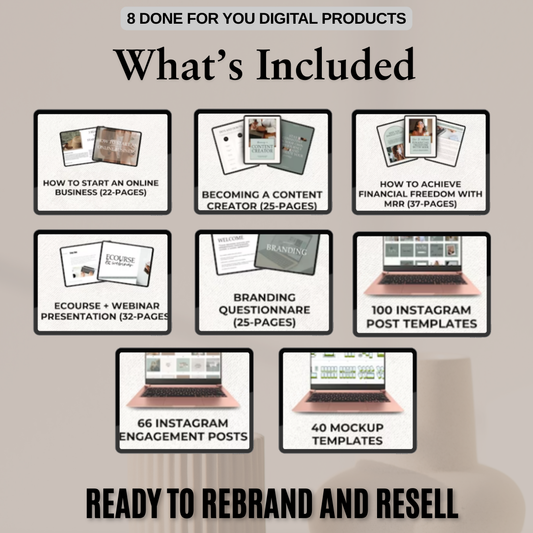
Digital products are appealing precisely because there's no inventory to manage, no shipping to arrange, and almost no cost to sell a second, third, or thousandth copy once the product exists. If you'd rather not build a product from scratch, options like an all-in-one PLR and MRR bundle or a done-for-you digital products pack let you start selling with resell rights already in place. For a broader sense of what's possible, this mega-guide of 100 digital products to sell online and this list of 40 digital products you can create using AI tools are worth bookmarking. And if you'd rather buy a product with resale rights already built in, this guide on how to create and sell digital products with MRR walks through the model in detail.
Step 1 — Prerequisites: WordPress + WooCommerce + Hosting
What You Need Before Starting
Before you can sell a single file, your site needs a few foundations in place:
-
A self-hosted WordPress site on your own domain (WordPress.com's free plan won't support WooCommerce)
-
Reliable web hosting with enough storage and bandwidth for your files, particularly if you're selling large audio, video, or software downloads
-
An active SSL certificate, so your store runs on HTTPS — this is non-negotiable, as payment gateways in the US, UK, and Australia will refuse to process transactions over an insecure connection
Most hosts issue a free SSL certificate automatically, but it's worth confirming this is active before you build anything further.
Installing WooCommerce
Once WordPress is running, installing WooCommerce takes only a few minutes:
-
From your WordPress dashboard, go to Plugins → Add New.
-
Search for "WooCommerce," then click Install Now, followed by Activate.
-
WooCommerce will launch a setup wizard automatically. Work through it, entering your store's basic details — business name, location, and currency (this matters if you're selling in USD, GBP, or AUD, since it affects tax display and payment gateway defaults).
-
When prompted about what you'll be selling, choose the option that reflects digital or downloadable products — this adjusts some default settings in your favor later.
-
You can skip detailed shipping configuration for now, since a digital-only store won't need it.
At this point, WooCommerce is installed and your store technically exists — the next step is configuring it specifically for file delivery rather than physical shipping.
Step 2 — Configure WooCommerce for Digital Downloads
General Product and Download Settings
WooCommerce has a dedicated set of settings that control exactly how digital files reach your customers, and getting these right early prevents most delivery problems later.
-
Go to WooCommerce → Settings → Products → Downloadable products.
-
Choose a file download method:
-
Force downloads hides your file's real server path and pushes the file through PHP — the most common choice for protecting files from being shared via a direct link.
-
X-Accel / X-Sendfile is a more scalable option if your hosting server supports it, useful for stores with high download volume.
-
Redirect only simply links straight to the file URL — simplest to set up, but offers the least protection.
-
Decide whether downloads should require the customer to be logged in, and whether access should be granted only once payment is fully confirmed rather than immediately at checkout.
These settings affect both security and customer experience, so it's worth testing your choice with a sample purchase before launch. If you're planning to accept PayPal as one of your payment methods, it's also worth understanding what PayPal requires for selling downloadable products before you go live, since its policies around digital goods differ from standard physical-product transactions.
Turn Off Shipping for Digital-Only Stores
If everything in your store is digital, there's no reason for shipping fields to appear at checkout — and removing them reduces friction for the customer:
-
Go to WooCommerce → Settings → Shipping.
-
Either avoid adding any shipping zones, or delete the default zone entirely so no shipping options are calculated or displayed.
With shipping removed and download settings configured, your store is now technically ready to hold a digital product — the next step is creating that product and attaching a file to it.

Step 3 — Create a Digital Product in WooCommerce
Add a New Product
With your settings in place, it's time to list your first digital product:
-
Go to Products → Add New.
-
Enter a clear, benefit-focused title and description — customers should understand exactly what they're getting before they scroll to the price.
-
In the Product data box, choose Simple product as the product type. This is the correct choice for a single file or bundle sold at one fixed price.
If you're still unsure what actually counts as a digital product, or you want a broader sense of the category before you start listing, this complete beginner's guide to digital products is a helpful primer, and this step-by-step process for making digital products in 2026 walks through the creation side in more depth.
Mark as Virtual + Downloadable
Still inside the Product data box, tick two checkboxes:
-
Virtual — tells WooCommerce nothing physical needs to ship
-
Downloadable — unlocks the file upload and delivery fields you'll use next
This combination is what separates a standard WooCommerce product from a proper digital download — without both boxes checked, WooCommerce will still try to calculate shipping at checkout, which confuses customers and can cause abandoned carts.
Attach the Digital Files
Once "Downloadable" is checked, a new Downloadable files section appears:
-
Click Add file.
-
Give the file a clear, customer-facing name (e.g., "Planner PDF – A4 + US Letter").
-
Upload the file directly, or paste a secure file URL if it's hosted elsewhere.
If your product includes multiple assets — a PDF, a Canva link, bonus templates, or instructions — it's best practice to zip everything into a single file so customers get one clean download rather than a confusing list of links. This is especially common with bundled offers, such as a themed Naomi bundle or a Luna bundle, where several templates or files are packaged together and delivered as one download. Multi-asset bundles like the Glow Lab Co. skincare content templates collection follow the same approach.
While you're here, also set:
-
Download limit — how many times a customer can re-download the file (leave blank for unlimited)
-
Download expiry — how many days the link stays active after purchase (leave blank for no expiry)
If you're selling products with resale rights attached, it's worth understanding the licensing terms before you list them — this overview of PLR digital products explains what buyers are and aren't allowed to do with the files once they're downloaded.
Pricing and Tax for Digital Goods
In the General tab of Product data:
-
Set your Regular price, and an optional Sale price if you're running a promotion.
-
Configure Tax status and Tax class according to your region's rules — this matters more than it might seem, since digital goods are often taxed differently to physical products (VAT on digital services in the UK and EU, GST considerations in Australia, and state-level sales tax rules in the US all vary).
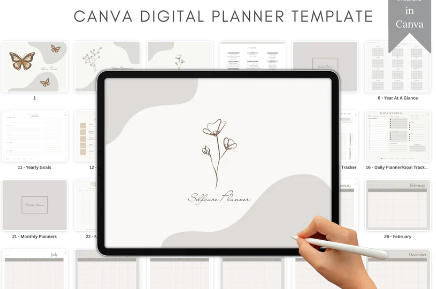
Pricing strategy also depends heavily on the product type. A simple productivity planner or a set of printable planners is typically priced as a low-ticket, high-volume item, while a comprehensive resource like an organic growth marketing bundle can command a higher price point given the depth of what's included. It's worth researching comparable products in your niche before settling on a number.
Product Images, Mockups, and Categories/Tags
In the product sidebar:
-
Add a Product image — a clean mockup showing the ebook cover, planner spread, or template preview.
-
Add a Product gallery with additional mockups or sample pages, which helps build buyer confidence before purchase.
-
Assign Categories and Tags so customers can browse your catalog logically (e.g., "Planners," "Templates," "Ebooks").
If you're short on inspiration for what categories or products to feature, this list of 15 digital products you can sell on Etsy without designing anything yourself is a useful reference for structuring a catalog around ready-made offers — similar in spirit to a packaged course such as the Ultimate Branding Course with Master Resell Rights or a themed collection like the Money Mindset Collection, both of which show how strong imagery and clear categorization make a product page easier to trust at a glance.
Step 4 — Set Up Payments for Digital Products
Enable Payment Gateways
To actually collect money, you'll need at least one live payment gateway connected:
-
Go to WooCommerce → Settings → Payments.
-
Enable the gateways relevant to your market — Stripe and WooPayments are widely supported across the US, UK, and Australia, while PayPal remains a strong option for buyers who prefer not to enter card details directly on your site.
-
Click Set up or Manage next to each gateway and enter your API keys or account credentials.
Higher-ticket digital products — courses, masterclasses, or full brand kits like the Ultimate Branding Course with Master Resell Rights — often benefit from offering more than one payment option, since buyers at a higher price point are more likely to abandon checkout if their preferred method isn't available.
Test Mode / Sandbox Before Going Live
Nearly every major gateway offers a test or sandbox mode:
-
Enable test mode and place a full test order, checking that checkout completes, the order status updates correctly, and the download link or email arrives as expected.
-
Once everything works as intended, switch to live mode and process one small real transaction to confirm it end-to-end.
Skipping this step is one of the most common reasons new stores lose their first few sales — a broken gateway connection or missing download link is far easier to catch in testing than after a customer has already complained. If you're planning to scale beyond a handful of products, this masterclass on building a six-figure digital product brand covers payment and operations considerations worth having in place early.
Step 5 — Customize Download Delivery and Customer Experience
How Downloads Are Delivered
Once a purchase is complete, WooCommerce delivers the file in three ways simultaneously:
-
A download link appears directly on the order confirmation page.
-
A confirmation email is sent automatically, containing the same download link.
-
The file also appears under My Account → Downloads for any customer who has an account or creates one during checkout.
This layered delivery approach means a customer rarely loses access entirely — even if they miss the email, they can log back in and retrieve their purchase, whether it's a single ebook or a themed collection like the Money Mindset Collection.
Recommended Delivery Settings
A few settings meaningfully improve the delivery experience:
-
Grant access timing — decide whether access should unlock the moment payment is authorized ("Processing") or only once the order is marked "Completed." Instant access is standard for digital products, since there's no fulfillment step to wait for.
-
Force downloads — keep this enabled where possible, so your file's direct URL isn't exposed and can't be shared or indexed.
-
A short thank-you or instructions message — add a brief note on the order confirmation page or in the email explaining how to unzip files, which software is needed to open them, and who to contact if something doesn't work.
Getting these details right reduces support requests significantly and leaves customers with a smoother, more professional impression of your store — the kind of experience that turns a one-time buyer of a single planner into a repeat customer for your next bundle or course.
Step 6 — Optimize the Storefront for Digital Products
Simplify Checkout
A digital-only store should feel noticeably faster to check out on than a physical-goods store, and a few adjustments make that happen:
-
Remove unnecessary checkout fields — shipping address, company name, and any field that doesn't apply to a file-based purchase — using WooCommerce's built-in checkout block editor or a checkout-field plugin.
-
Confirm shipping methods are fully disabled so they never appear, even briefly, during checkout.
-
Consider a streamlined one-page checkout if you're selling low-ticket items, since every extra step between "add to cart" and "pay" is a chance for a customer to abandon the purchase.
If you're still comparing where to host and sell your digital catalog, this comparison of the best platforms for selling digital products in 2026 is a useful reference for understanding where WooCommerce fits relative to hosted marketplaces.
Product Layout, Categories, Upsells/Cross-Sells/Related Products
Once checkout is streamlined, focus on how customers discover more of your catalog:
-
Organize products into clear categories so browsing feels intuitive — group planners, templates, and ebooks separately rather than mixing everything into one list.
-
Use WooCommerce's upsells and cross-sells to suggest a related, higher-value product on the product page or in the cart. A single planner page might upsell into a full planner collection, while a seasonal item could cross-sell into something timely like a New Year, New Me collection.
-
Enable related products so customers naturally see more of your catalog without needing to search for it — a themed set like the Positivity Pop collection bundle or a specialized offer like the Midjourney Mastery guide collection works well as a "customers also bought" suggestion alongside a related product.
If you're building out your catalog and want more product ideas to round out categories, this list of 50 digital product examples you can start selling today is a solid reference for filling gaps in your store.
Step 7 — Marketing Your Digital Products on WooCommerce
Once your store is technically sound, traffic and conversions become the real driver of revenue. A few consistently effective strategies:
-
Build an email list with a lead magnet — offer a free mini planner, template, or checklist in exchange for an email address, then nurture that list toward your paid products.
-
Use coupons strategically — WooCommerce's built-in coupon system supports percentage discounts, launch codes, and free-shipping equivalents for digital bundles, all useful for driving urgency around a new release.
-
Optimize product pages for SEO — target specific, buyer-intent keywords (e.g., "digital planner for small business owners" rather than just "planner") in your titles, descriptions, and image alt text so pages rank in the US, UK, and Australia alike.
-
Lean on content marketing — blog posts, YouTube tutorials, and Pinterest pins all drive consistent organic traffic to product pages over time, particularly for visual products like templates and planners.
For more detailed walkthroughs of the WooCommerce setup process itself, it's worth cross-referencing a few external guides alongside this one — Jotform's guide to selling digital products with WooCommerce, OptinMonster's tutorial on selling digital downloads with WooCommerce, and WPFactory's breakdown of selling digital products with WooCommerce each cover slightly different angles worth comparing. If you're using AI tools as part of your content or product pipeline, this collection of AI prompts to sell online can help speed up how quickly you produce marketing copy and product variations.
Common Issues and Fixes
Even a correctly configured store runs into occasional hiccups. Here are the most common ones:
Download link doesn't appear after purchase. Confirm that "grant access after payment" is enabled and that your payment gateway is correctly marking the order as "Processing" or "Completed" rather than leaving it "On hold." WooCommerce's own documentation on digital and downloadable product handling is the most reliable reference for diagnosing this, since gateway-specific quirks are common.
Files aren't unlocking for the customer. Check the download expiry and download limit settings on the product — if either was set too restrictively, a legitimate customer may be locked out after their first attempt. Increasing the limit or removing the expiry usually resolves it.
Piracy or link-sharing concerns. If you're worried about files being redistributed, switch to "Force downloads" instead of "Redirect only," add a reasonable download limit, and consider watermarking PDFs with the buyer's name or order number as a light deterrent.
Final Thoughts / Next Steps
Setting up WooCommerce for digital products takes a bit of upfront configuration — downloadable settings, payment gateways, and delivery testing — but once it's live, the entire sales process runs on autopilot. Every purchase triggers automatic file delivery, and your only ongoing work is creating new products and driving traffic to them.
From here, the highest-leverage next step is usually expanding your catalog and refining what you already have. If you're looking for proven product ideas to build toward consistent, recurring revenue, this guide to the best digital downloads for passive income in 2026 is a strong place to start planning your next release.
FAQ
Is WooCommerce good for selling digital products, or is it built mainly for physical goods? WooCommerce works well for both, but it has dedicated settings specifically for digital products — the Virtual and Downloadable product types, automatic file delivery, download limits, and expiry controls are all built in natively. You don't need a separate plugin just to sell a file-based product.
Do I need a special plugin to sell downloads with WooCommerce? No. WooCommerce includes downloadable product support out of the box — simply mark a product as "Downloadable" and upload your file. Extra plugins are only necessary for advanced features like software license key generation, drip-fed course content, or membership paywalls.
How does WooCommerce deliver files to customers after purchase? Once an order is confirmed, WooCommerce automatically adds a download link to the order confirmation page, sends a confirmation email containing that same link, and stores the file under the customer's "My Account → Downloads" area for future access.
Can I limit how many times a customer downloads a file, or how long the link stays active? Yes. Each downloadable file has optional settings for a download limit (how many times the link can be used) and a download expiry (how many days after purchase the link remains valid). Leaving either field blank makes it unlimited or permanent.
Is WooCommerce a good choice for selling digital products in the US, UK, and Australia? Yes — WooCommerce supports multiple currencies, region-specific tax classes, and payment gateways like Stripe, PayPal, and WooPayments that operate across all three markets, making it a practical option regardless of where your customers are based.
🎬 Want a visual walkthrough?
If you’d rather watch than read, here’s the full explainer video covering everything in this guide: