




1. Introduction
If you've been putting off launching a digital product because it sounds technical, here's the good news: it isn't. Digital products are one of the lowest-friction ways to start an online business — no inventory to manage, no packaging, no shipping carriers to deal with, and no warehouse eating into your margins. Once your file is uploaded, it can be sold to one customer or ten thousand customers with zero extra effort on your end.
🎥 Prefer watching instead of reading?
Watch the full step-by-step explainer video below.
Better still, you don't need a full week (or a developer) to get this live. If you focus on launching one product instead of a full catalog, you can realistically go from an empty Shopify account to a working, sellable storefront in 3 to 5 hours. Shopify officially supports digital goods on its platform, and there are no extra platform fees for selling digital products beyond your normal subscription and payment processing costs — so there's no hidden catch to watch for before you begin.
By the end of this guide, you'll have a live Shopify store with one digital product for sale, a delivery system that automatically sends the file after purchase, and a checkout flow you've personally tested end to end. If you're still deciding what to sell, this list of 100 digital products you can sell online in 2026 is a solid place to get ideas before you start building.
2. What You Need Before You Start
The fastest way to burn your afternoon is to start building without your assets ready. Before you log into Shopify, gather the following:
-
One finished digital file — a PDF, ZIP, MP3, or video file, fully complete and ready to sell (not a draft)
-
One product title and a short description — a clear, benefit-driven name and 2–3 sentences explaining exactly what the buyer receives
-
3 to 5 product images or mockups — styled previews or cover graphics, not the raw file itself
-
A simple refund and usage policy — even a short paragraph covering whether downloads are refundable and how the file can be used
-
Your store name, logo, and brand colors — enough to make the storefront look intentional, not blank
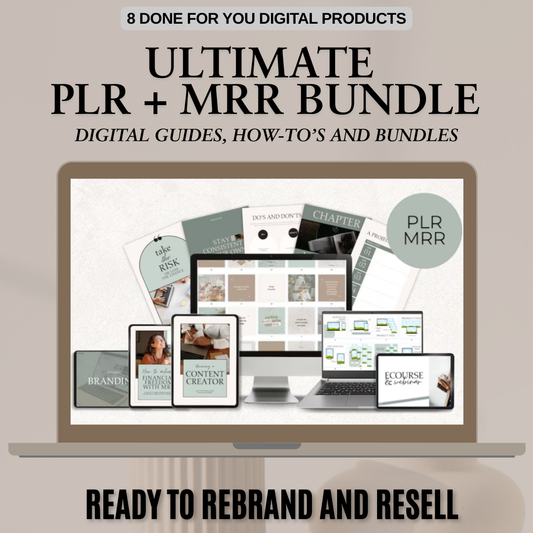
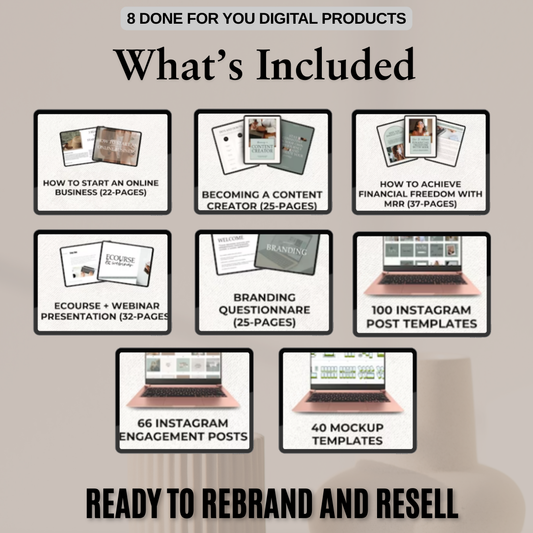
If you don't want to create your product from scratch, you have a couple of shortcuts worth knowing about. PLR digital products let you buy pre-made content with resale rights and rebrand it as your own, while done-for-you digital products go a step further and arrive ready to upload and sell with minimal editing. Both routes can save you the bulk of your prep time, which matters if you're working inside a single afternoon.
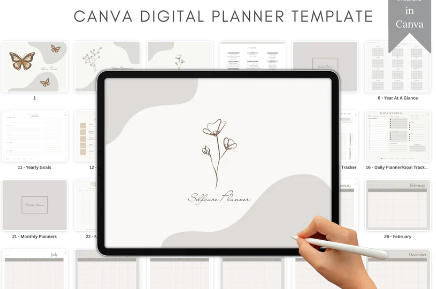
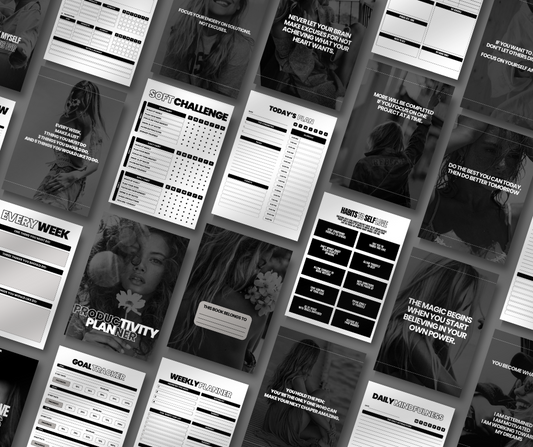
If you're aiming for something simple to package and explain, planners are consistently one of the easiest digital product categories for a first launch — lightweight files, clear value, and minimal customer confusion about what they're buying.
Gathering all of this first means you won't be stuck mid-setup trying to write a description or hunting for a logo file while your store sits half-finished.
3. The Afternoon Setup Plan (At-a-Glance Checklist)
Here's the full sequence you'll follow, broken into seven steps. Bookmark this section — it works as a quick-reference checklist while you're building, so you can jump back to it anytime without rereading the whole guide.
-
Create your store and choose a theme — set up your Shopify account and pick a clean, simple theme
-
Configure the basics — store name, currency, payment processor, checkout settings, and policies
-
Add the product listing — title, description, and mockup images
-
Install a digital delivery app and attach your file — this is the step that makes automatic delivery possible
-
Turn off shipping for the product — so Shopify doesn't treat your digital file like a physical shipment
-
Test the purchase and download flow — place a real order and confirm the file arrives correctly
-
Publish — remove password protection and go live
This same core sequence — create the product, disable physical shipping, install a delivery app, upload the file, and test before launch — is echoed across Shopify's own guidance and setup tutorials, so it's a reliable path rather than a shortcut that skips something important.
If Shopify ends up not being the right long-term fit for your product, it's worth knowing how it stacks up against other options. This comparison of the best platforms for selling digital products online in 2026 and this guide to selling digital downloads on Etsy are both useful references if you want to compare before you commit an afternoon to Shopify specifically.
4. Step-by-Step Walkthrough
4.1 Set Up the Store
Start by creating your Shopify account and choosing a theme. You don't need anything elaborate — a clean, simple layout will always outperform a cluttered one for digital products, since buyers are usually making a fast decision based on trust and clarity rather than browsing for hours. Add your logo, basic brand colors, and homepage copy that states plainly what you sell. Keep the homepage light: a headline, a short line about what makes your product worth buying, and a clear path to the product page. Save the heavier content — FAQs, policies, extended descriptions — for the product page itself.
4.2 Configure the Basics
Before you touch product listings, lock in your store's foundational settings: store name, currency, payment processor, domain, markets, and checkout preferences. Doing this early matters more than it seems — if you leave payment setup or checkout configuration until after your product is live, you risk a delay right when you're ready to publish, which can easily eat into the rest of your afternoon. Set your currency to match your primary audience (USD, AUD, or GBP, depending on where you're selling), connect Shopify Payments or your preferred processor, and confirm your checkout is set to collect email addresses so delivery confirmations reach customers reliably.
4.3 Add the Product
Now create your first product listing. Write a title that's specific rather than clever — customers buying digital goods want to know exactly what they're getting before they click purchase. Your description should cover file format, what's included, and who it's for. At this stage, upload mockups and styled previews only, not your actual downloadable file — that gets connected later through your delivery app.
If you're still finalizing what to sell, it's worth looking at what's already proven to convert. Many sellers are building entire catalogs around digital products you can create using ChatGPT or AI tools, since AI-assisted products are quick to produce and don't require design experience. If you'd rather sell something with an existing template, browsing Midjourney prompt packs or a bundle like 150 AI images Midjourney prompts can give you a sense of how these listings are typically structured — clear thumbnails, tight descriptions, and an obvious value statement.
4.4 Mark It as Digital
This is the step most first-time sellers miss, so treat it as non-negotiable. In your product's Shipping section, uncheck the option that marks it as a physical product (or toggle off "This product requires shipping," depending on your Shopify version). If you skip this, checkout will behave as though you're mailing something — asking for a shipping address, calculating shipping rates, and generally confusing customers who are expecting an instant download. This single toggle is responsible for more support tickets and abandoned checkouts than almost anything else in this setup, so double-check it before moving on.
4.5 Install a Delivery App
Shopify doesn't deliver downloadable files automatically out of the box, so you'll need an app to handle it. For most first-time sellers, Shopify's own free Digital Downloads app is the simplest starting point — it automatically emails a download link once payment clears, with no extra configuration required.
If you outgrow it later, alternatives like EDP, Filemonk, SendOwl, or Sky Pilot offer more advanced features, including license key delivery, download expiration, and file size support for larger products like video courses. For your first afternoon, though, stick with the simplest option that gets the job done — you can always upgrade your delivery system once you have real sales data to justify it. If you're weighing pricing and features more carefully before committing, this breakdown of Shopify apps, fees, and tips for selling digital products is worth reading before you install anything.
4.6 Attach the File
Inside your delivery app, upload your actual file and link it to the correct product listing. Set delivery to automatic so customers receive access immediately after payment — this is the entire point of selling digital products, and manual delivery defeats it. If your app supports download limits, you can optionally cap how many times a file can be downloaded, which helps discourage sharing without adding friction for legitimate buyers.
4.7 Add Trust Elements
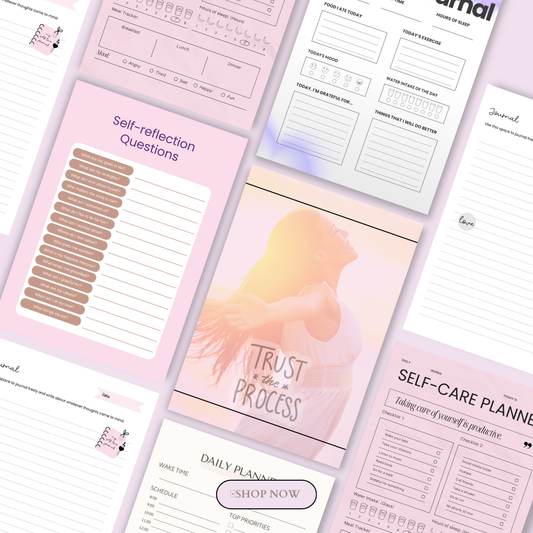
Digital buyers can't physically inspect a product before purchase, so trust has to be built through the page itself. Add a short FAQ addressing common questions (file format, compatibility, how delivery works), clear usage terms, and — if relevant — a simple "read me" or getting-started guide included with the file. This step directly reduces refund requests and support emails, since most digital product complaints come from unclear expectations rather than actual product issues. Sellers offering self-love journals or similar personal-use products often find that a short usage note goes a long way toward preventing confusion about licensing and intended use.
4.8 Test Before Launch
Place a real test order before you announce your store is open. Confirm three things: payment processes correctly, the download link or file arrives via email within a few minutes, and the file itself opens correctly and is the final version — not a draft or placeholder. Test from a different browser or device if possible, to mimic what an actual customer will experience. This is the single most important step for catching setup errors before they become customer complaints.
4.9 Publish
Once everything checks out, remove any password protection on your store and make it live. At this point, your Shopify store is fully capable of accepting payments and automatically delivering digital files without you touching a single order manually — which is exactly what makes this business model scalable from day one.

5. Best Digital Products to Launch Fast
If you want to actually finish your setup in one afternoon, your product choice matters as much as your technical setup. Pick something lightweight to produce, easy to explain in one sentence, and simple to deliver as a single file. Strong first-launch options include:
-
Printable planners — low production effort, evergreen demand
-
Budget trackers — practical, easy to describe, appeals to a broad audience
-
Social media templates — fast to create, especially with AI tools
-
Canva templates — no design software required for the buyer
-
Notion templates — popular with productivity-focused audiences
-
Short ebooks or guides — easy to position as an authority piece
-
Checklists and swipe files — minimal file size, quick to produce
If you'd rather not design from scratch, there are two efficient paths. You can explore digital products you can sell on Etsy without designing for low-effort formats, or go the resale route by looking into the best PLR products to resell in 2026, which walks through sourcing pre-made content you can rebrand and sell immediately. Pairing that with high-demand niches for PLR digital products that sell fast can help you avoid picking a saturated category on your first attempt.
For a faster shortcut still, done-for-you digital products arrive essentially ready to upload, which suits an afternoon timeline better than building from a blank page. And if you want a broader view of what's currently selling well before you commit to a niche, this roundup of digital products to sell is a useful gut-check.
If you're drawn to the AI-content space specifically, products like the Midjourney 101 beginner's guide or a membership-style prompt vault show two different ways to package the same underlying skill set — one as a single guide, the other as an ongoing content vault — both viable for a fast first launch.
6. Common Mistakes to Avoid
Even a well-planned afternoon setup can go sideways if you miss one of these common errors. Watch for these before you publish:
Uploading the wrong file or version. It's easy to attach a draft, an outdated version, or a low-resolution mockup instead of the final file. Always open the actual attached file after connecting it to your delivery app to confirm it's the finished product your customer expects.
Forgetting to disable shipping. As covered earlier, leaving "requires shipping" enabled is the single most common setup error for digital sellers. It causes Shopify to ask for a shipping address at checkout and can even calculate shipping costs on a product that has none. Double-check this setting on every product you add, not just your first one.
Weak product mockups. Since digital buyers can't hold or inspect the product before buying, your images are doing the selling. Flat, uninspired previews reduce conversion rates significantly compared to styled mockups that show the product in context. Shopify's own guidance on selling digital products reinforces that strong visuals matter more for digital goods than physical ones, precisely because there's no unboxing moment to build trust another way.
Skipping the test order. It's tempting to publish as soon as everything looks right in the admin panel, but a real test order is the only way to confirm the entire chain — payment, delivery app, email trigger, and file access — actually works end to end. This step also catches payment-related issues, which matters if you're accepting PayPal alongside other methods; this guide on selling downloadable products with PayPal covers a few PayPal-specific quirks worth checking before you go live.
No download instructions or refund terms. Ambiguity is the biggest driver of refund requests and support emails for digital products. A short note on file compatibility, how to access the download, and your refund policy prevents the majority of post-purchase confusion. For a broader breakdown of the setup process, this more detailed walkthrough of how to sell digital products on Shopify and this full comparison from Ecommerce Platforms both go deeper into policy and delivery details than a single afternoon guide can cover.
7. Why Digital Products Work Well on Shopify
Digital products remain one of the most efficient business models available on Shopify, for a few clear reasons. There's no inventory to manage, no shipping costs to absorb, and once a product is created, it can be sold indefinitely with no marginal cost per sale. Margins are typically much higher than physical products, since your only ongoing expense is the platform and payment processing fees — not materials, packaging, or fulfillment labor. Delivery is also instant, which matters for conversion: customers expect to receive digital goods immediately, and Shopify's automated delivery apps make that possible without any manual work on your end.
That said, digital products come with their own tradeoffs. Piracy is a real concern, since files can be shared or redistributed in ways physical products can't be. Buyer uncertainty is another factor — customers are taking more of a leap of faith when they can't physically inspect what they're buying before checkout. Both of these are manageable with the right product page: clear usage terms, strong previews, and transparent policies go a long way toward reducing both piracy incentives and buyer hesitation. If you want a broader foundational understanding of how this all fits together, this beginner's guide to digital products and this ultimate guide to selling digital products online are both solid starting points before you scale beyond your first product.
Once your first listing is up, this same model scales cleanly. Sellers running niche stores — everything from self-care and wellness kits to self-love workbooks to grief support ebooks and confidence and mindset guides — all use the exact same delivery mechanics you just set up. The niche changes; the infrastructure doesn't.
8. Closing
You don't need a complicated tech stack, a developer, or a full week to start selling digital products on Shopify. One product, one delivery app, and one properly tested checkout flow is genuinely enough to go live by the end of the day. The steps in this guide — from disabling shipping to attaching your file to running a real test order — cover everything that trips up most first-time sellers, so if you've followed along, your store should be ready to publish.
From here, it's worth thinking about how you'll grow past your first listing. Bundling related products, like the Creative Entrepreneurship Collection or a curated set like Plan & Prosper, is a natural next step once your core setup is proven. If you're building in the AI content space specifically, prompt packs like the Director's Cut cinematic prompt pack or the Influencer Energy prompt pack show how quickly a single-product store can expand into a small catalog. For a visual walkthrough of the setup process covered in this guide, this video tutorial is a useful companion if you'd rather watch each step than read it.
If you're ready to go further, check out our related guides on the best digital download apps for Shopify and how to automate digital product delivery once your store starts scaling past a single product.
Frequently Asked Questions
Do I need coding skills to sell digital products on Shopify?
No. Shopify's built-in product editor and app ecosystem handle everything from checkout to file delivery without any code. The only "technical" step is installing a digital delivery app and connecting your file to the product listing, which takes a few clicks inside the app's dashboard.
How much does it cost to sell digital products on Shopify?
Beyond your regular Shopify subscription and standard payment processing fees, there are no extra platform charges for selling digital goods. Most digital delivery apps offer a free plan or a low-cost tier that covers everything a first-time seller needs, with paid upgrades only necessary once you need advanced features like license keys or download expiration.
Can I sell both digital and physical products in the same Shopify store?
Yes. Shopify automatically detects which products in a cart require shipping and skips the shipping step for carts containing only digital items. Just make sure each digital product has "requires shipping" disabled individually, since this setting is applied per product, not store-wide.
What happens if a customer doesn't receive their download link?
This is usually caused by an email delivery issue rather than a broken file — check your spam folder first, then confirm the order in your delivery app's dashboard to resend the link manually. This is exactly why testing your checkout flow with a real order before launch matters: it catches these gaps before a paying customer runs into them.
How do I stop people from sharing or reselling my digital files?
No system fully prevents file sharing, but most delivery apps let you set download limits and link expiration to reduce casual redistribution. Beyond that, clear usage terms and licensing language on your product page and in the file itself act as both a deterrent and a legal safeguard if the terms are violated.
🎬 Want a visual walkthrough?
If you’d rather watch than read, here’s the full explainer video covering everything in this guide: